Click Here to Watch In Hindi
👇
👇
CP allows you to copy directories and command files using the command line. With this command, you can transfer multiple files or folders, preserve attribute information and create their backups. CP copies file independently from their originals. So, we can say that the CP command is useful for Linux. People still don’t know how to use this command and search for answers regarding copying multiple files using CP in Linux. That’s why we have written this article to briefly describe how to copy multiple files using CP in Linux.
Now we will explain different methods to use CP for performing various tasks.
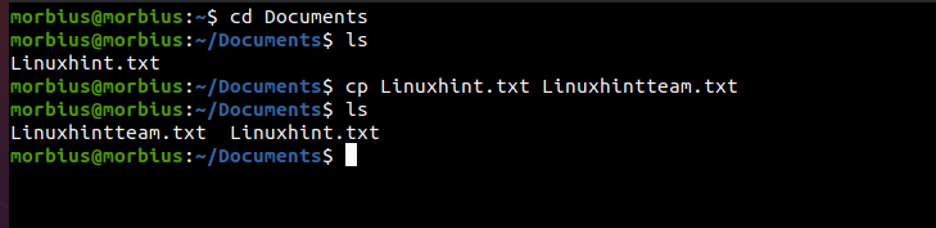
The file, which we will copy with the cp command, passes its name and destination. We will copy the Linuxhint.txt file to a new file named Linuxhintteam.txt using the cp command. During the operation, the cp command will also create a new file part of the operation.
After using the ls command to display the available file in the directory.
Now, execute the below command to make a copy of a specific file:
Here we have used the below command to make a copy of the Linuxhint.txt file:
cp Linuxhint.txt Linuxhintteam.txt
To verify that the file is successfully copied, use the ls command again.
You must provide both the file name and the destination directory when using the cp command to copy multiple files.
First, open the specific directory in the terminal and execute the tree command. If you don’t know about the tree command, then please check out this blog.
In the Documents folder, we have two files, i.e., Linuxhint.txt and Linuxhintteam.txt, and one folder named Linuxtricks. Now, execute the below command in the terminal:
Here we used the following command to copy Linuxhint.txt and Linuxhintteam.txt in the Linuxtricks folder:
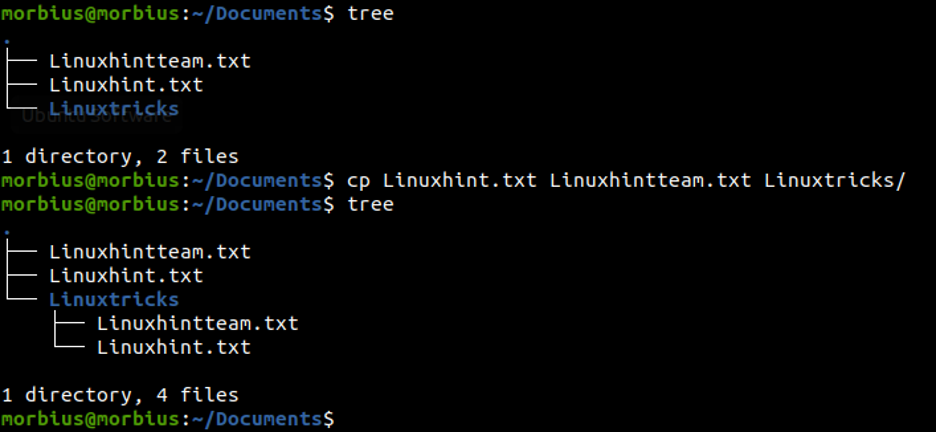 To verify that the files are copied, use the tree command again.
The CP command, by default, does not copy directories. On copying the directory, it shows an error.

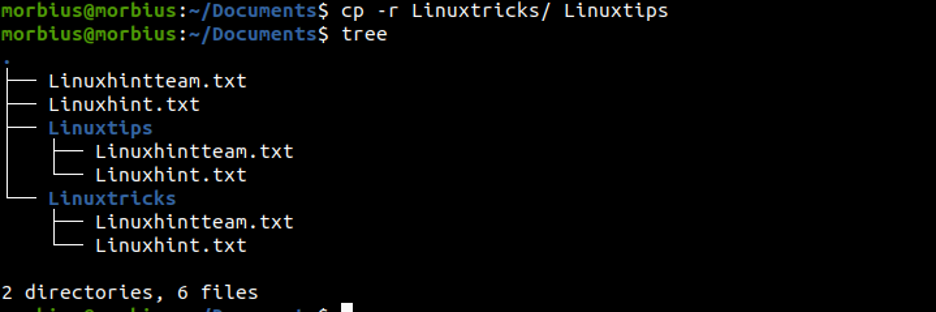
To copy the directory with the help of the cp command, we have to pass -R flag. It creates a copy by copying the flagged folder recursively.
cp -r foldername/ foldername 1
Here we have used the following command to copy the directories:
cp -r Linuxtricks/ Linuxtips
To copy the multiple directories with the cp command, copy the path of the directories and pass it after the destination directory.
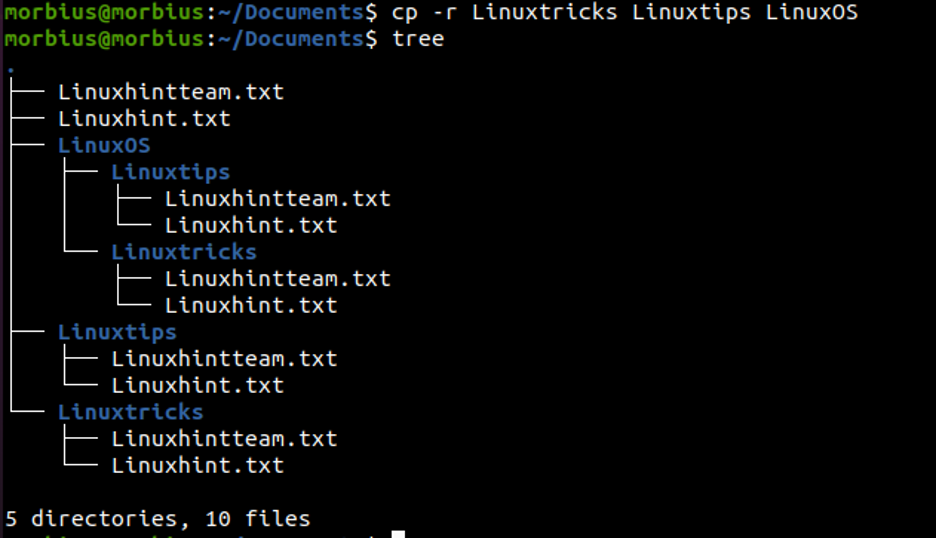
First, execute the tree command to see details about files and folders available in the directory:
 Now execute the below command to copy multiple directories using the CP command:
Here we used the following command to copy Linuxtips and Linuxtricks into the LinuxOS folder:
Finally, we verified that the system copied the directories correctly.
Take a Backup when Copying a File
We can use the -b flag to back up the file if someone overwrites the copied file. It also creates a backup file by copying the file in place.
 In the above example, Linuxhintteam.txt ~ represents the backup file.
We can use the -i flag to prompt confirmation when we copy the file. Usually, a destination file is overwritten when using the CP command. This happens in that condition when the file is present at the time of copying. The command will prompt using the -i flag for overwriting the file.

We can pass the -l flag while creating a hard link instead of copying with the help of the cp command. A new file is created by not copying the file, which is a hard link to the data on the disk. This is a primer on soft or symbolic and hard links.
The preserve option is passed to preserve the file attributes (i.e., user ownership, group, and permissions) along with the properties to be preserved, by default, a mode that will preserve timestamp and ownership.
The -v option is used in the Cp command to show the files that are copied. This option prints folders and files that are copied to standard outputs.
